Technology
How to turn off Google Docs Gemini writing prompts
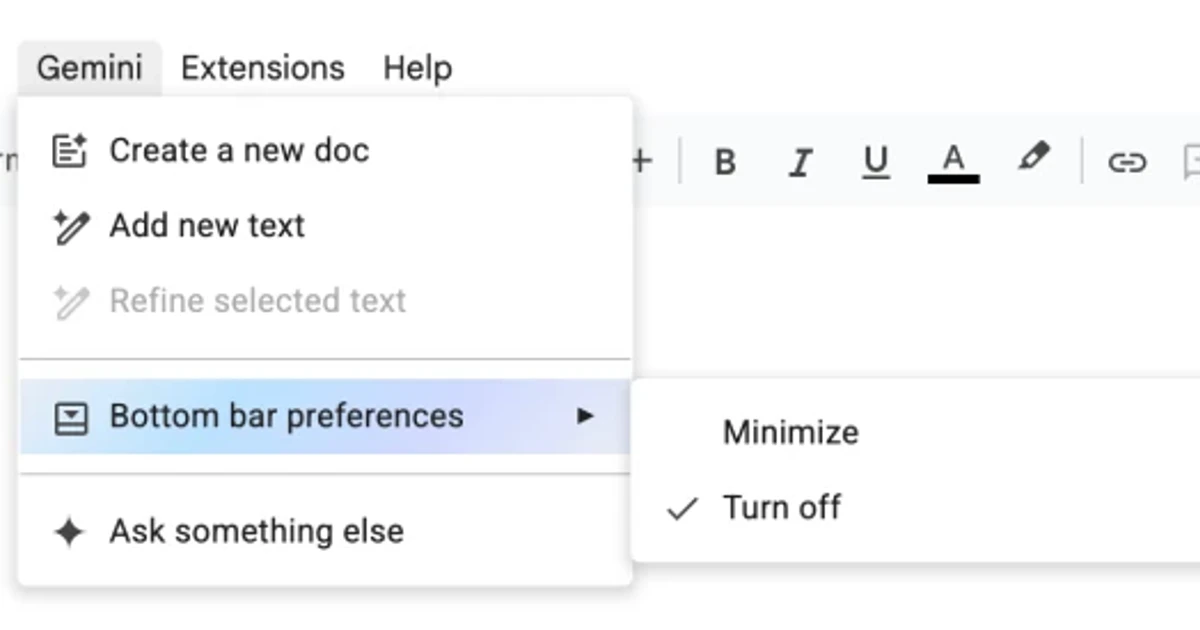
Every day, people are opening Google Docs only to find an AI helper waiting in the margins, or hovering over the page with a “help me write” nudge they never asked for. The backlash is not really about one pop-up. It is about control, because in Google Workspace the settings that matter most are often above the document, not inside it.
Why the prompts keep showing up
Google describes Gemini in Docs as a writing assistant that can draft, refine, summarize, and generate content, and the Docs side panel can automatically surface prompts and contextually relevant suggestions. That is useful if you want help getting started, but it also explains why the feature can feel invasive in a shared work tool: the interface is designed to anticipate your next move.
This is not a brand-new experiment. Google first introduced Help me write in 2023, then expanded it to more languages in April 2025. By March 10, 2026, Google said “Google Workspace Labs” had become “Google Workspace Experiments,” signaling that the company was folding its early-access AI testing into a broader Gemini rollout. Later Google Workspace updates, including one on April 22, 2026, described Docs, Sheets, Slides, and Drive as being reworked so Gemini could help users move from a blank page to a finished document faster.
That design choice is exactly what is fueling the backlash. For many users, a writing prompt is not a convenience, it is a distraction, especially when it appears automatically and repeatedly while they are trying to work. The complaint is not that AI exists in the product. It is that the product behaves as if everyone wants it.
The settings that actually matter

If you want the strongest practical route to suppress Gemini prompts, the key controls are not just in Docs. Google says administrators can enable or disable Gemini features and the side panel across Workspace services, including Gmail, Calendar, Drive, Docs, Sheets, Slides, Forms, Drawings, Vids, Meet, Chat, and Google Workspace Studio. Google also says the default setting for Gemini features in Workspace services is on, which means the system starts from an enabled state unless someone changes it.
That leads to the simplest rule:
• If your account is managed by an organization, the broadest off switch is the administrator-level Gemini setting. • If you entered through Google Workspace Experiments, opting out of that program can remove the experimental AI features. • If your organization enabled Gemini, and you cannot change it yourself, Google says to contact your administrator.
The Workspace Experiments route matters because community guidance suggests it may be the only sure way to remove the features for people who came in through Google’s experimental-access program. The tradeoff is blunt: leaving Workspace Labs, now Workspace Experiments, can permanently remove access to all of those experimental features. That is not a light tap on a preference toggle. It is a full exit from the early-access track.
What does not fully turn it off

The most important limit is this: turning Gemini off for a single app does not necessarily end Gemini access everywhere. Google says that even if Gemini is off for a specific app, users may still access the same data through Gemini in other apps. So a Docs-only fix can reduce exposure in one place without truly stopping the broader system.
That distinction matters because the interface users see is only one layer of the rollout. If the side panel is still enabled in other Workspace tools, or if the account remains enrolled in experimental access, the AI experience can keep resurfacing in new places. In practical terms, a partial shutdown can make the prompts less visible, but it does not guarantee that the underlying Gemini infrastructure is gone.
For workers in organization-managed accounts, this is where the experience becomes frustrating. The person doing the writing may be the one interrupted by the prompt, but the person who can actually change the default is often an administrator several layers away. That gap between user consent and organizational control is part of the larger problem.
Why people are pushing back
The complaints in Google Help Community threads show how small interface choices can become daily irritants. A May 2024 Google Docs user said Gemini’s side panel kept opening automatically every time they switched document tabs. A May 2026 user said the hovering “help me write” prompt was distracting and caused missed clicks. Those are not abstract objections. They are descriptions of a tool that keeps inserting itself into ordinary work.
That kind of friction also reveals a bigger policy issue: default-on AI rollout assumes that automation is neutral, universal, and welcome. In reality, the burden is distributed unevenly. Some people want drafting help. Others want a plain document. In a workplace setting, the default choice can affect whole teams, even when individual users never consented to the feature in the first place.
That is why the backlash is bigger than annoyance. It is about whether work software should treat AI as an optional assistant or as an unavoidable layer of the product. Google’s current setup leans toward the latter, with admins able to control broad access and users often left navigating partial fixes.
The practical bottom line
If you want the prompts gone, the decisive settings are the organization-level Gemini controls and, for some users, opting out of Workspace Experiments. A Docs-only change is not enough if Gemini remains enabled elsewhere in Workspace, and Google’s own guidance makes clear that the system is designed to stay connected across apps.
The strongest answer today is not a hidden checkbox inside a document. It is a reminder that user consent should be visible, reversible, and specific. Until that changes, every “help me write” prompt will keep standing in for a larger argument over who gets to decide what a work tool should do by default.