Technology
WhatCable helps Apple Silicon Macs decode USB-C cable speeds

A single USB-C plug can mean a charge-only lead, a data cable, a high-wattage power line, or a display connection, and the outside usually gives no clue which one you are holding. That gap between the promise of simplification and the reality of mixed capabilities is where WhatCable fits: it turns system data already sitting inside Apple Silicon Macs into plain-English labels for the cable in front of you.
Why the connector still creates consumer confusion USB-C is not one fixed standard so much as a family of overlapping capabilities. The same-looking connector can hide anything from a slow USB 2.0 charge-only cable to a 240W, 40 Gbps Thunderbolt 4 cable. USB4 adds another layer by building on USB 3.2 and USB 2.0 architecture while enabling multiple simultaneous data and display protocols, which means the same port can negotiate very different behavior depending on the cable and device attached.
A cable can fit, charge, and even transfer data, yet still be the wrong cable for fast syncing, external displays, or high-speed charging.
What WhatCable does on Apple Silicon Macs WhatCable is a free, open-source macOS menu bar app made for Apple Silicon Macs. It reads information macOS already exposes through IOKit, then translates that technical data into plain English so the cable becomes legible without a utility drawer full of jargon.
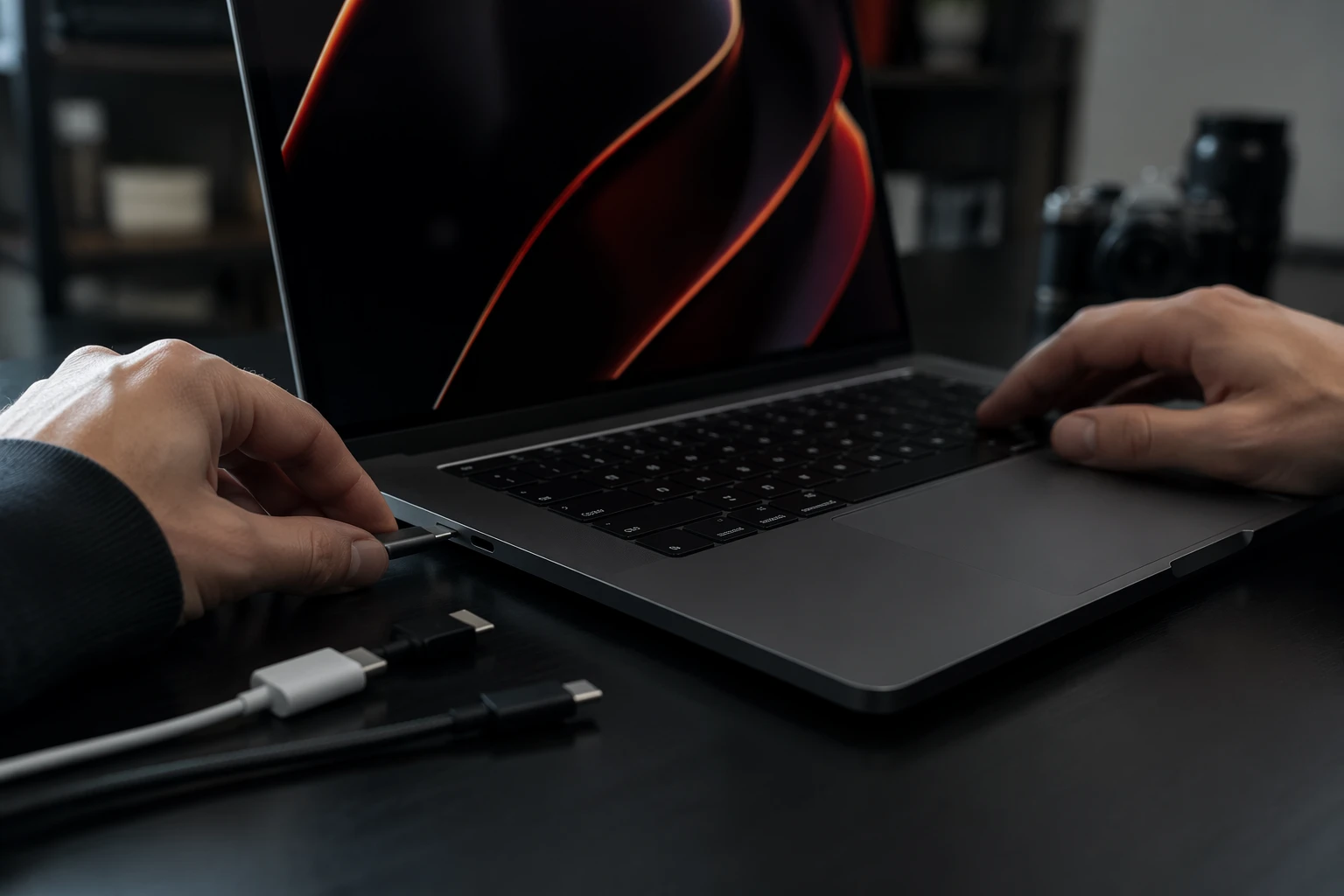
It can show, per port, whether a cable is USB 2.0 charge-only, USB4, or Thunderbolt, whether it is limiting charging speed, and whether a display is connected. It is a small menu bar utility with zero network, account, telemetry, or analytics requirements.
Apple’s developer documentation says IOKit gives nonkernel access to IOKit objects through a device-interface mechanism. In practice, that means WhatCable is not inventing hidden information; it is surfacing system-level details macOS already knows but does not present clearly enough for everyday use.
The practical signals that matter: power, speed, display, safety The useful way to judge a USB-C cable is not by the connector shape but by four things: how much power it can carry, how fast it can move data, whether it can handle display output, and whether it is built safely for the load. WhatCable focuses on those same pressure points by showing charging power, cable speed, and e-marker data in plain English.
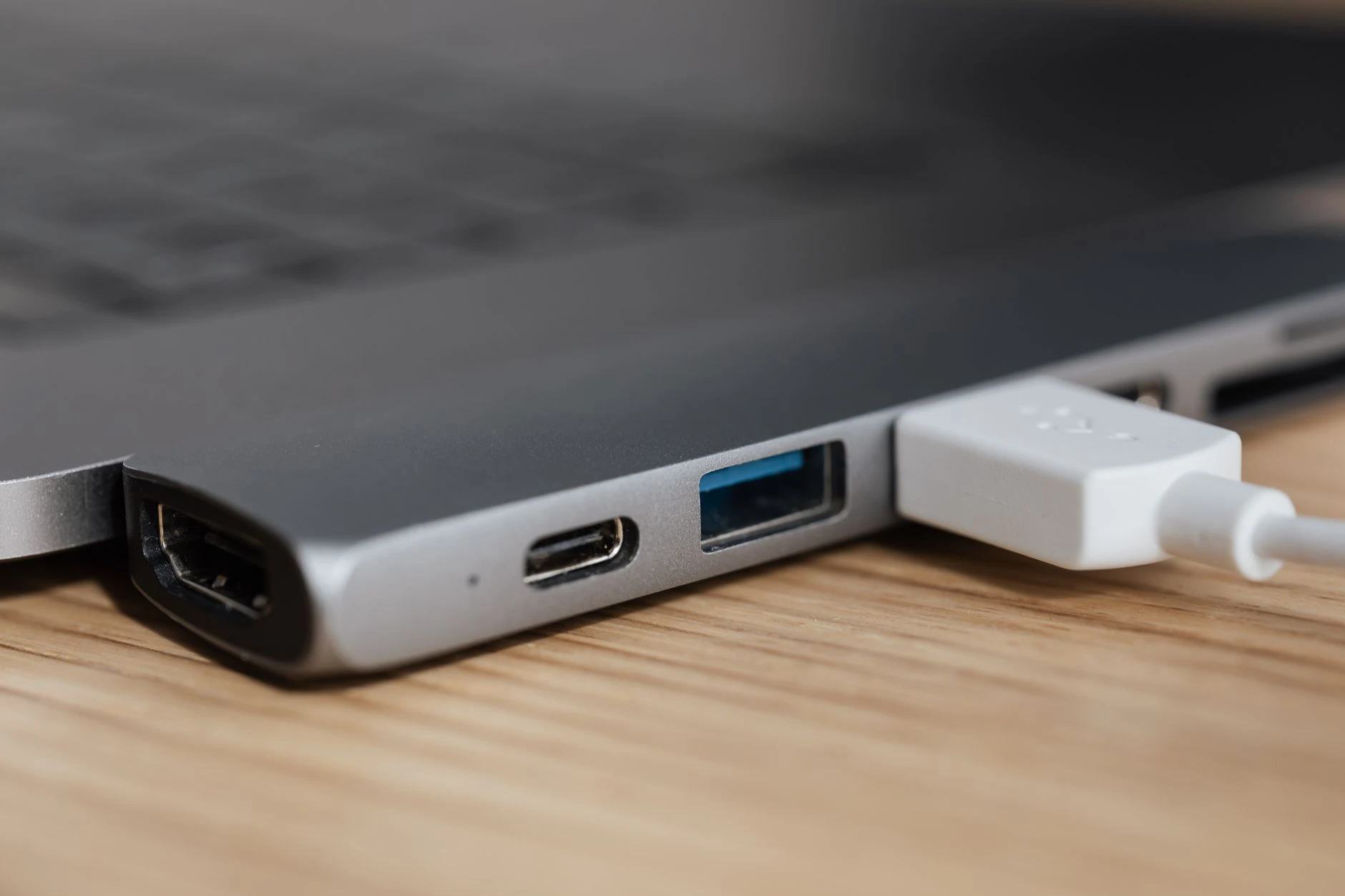
That framing turns a vague complaint like “my MacBook is charging slowly” into something actionable. If a cable is only good for limited power, the Mac may negotiate a slower charge even when the charger itself is capable of more. If the cable is the bottleneck for data, the port can still look normal while transfers crawl.
How USB-C cables identify themselves Higher-power and higher-performance USB-C cables often rely on e-marker chips. Those chips can provide cable characteristics including length, maximum supported current and voltage, USB signal type, vendor and product ID, and alternate mode support. In other words, the cable can tell the device what it is built to handle, but only if the device and software are able to read that data.
E-marker chips are required on USB-C cables that support 5 amps and/or exceed 60 watts of power carrying capability.
Why Cable Detective matters too WhatCable is not the only tool trying to make this ecosystem readable. Cable Detective, a newer utility in the App Store, says Apple Silicon Macs can expose power direction, negotiated USB-PD contracts, cable identity via e-marker data, data speed, and DisplayPort lane state. Its listing says it can tell you exactly what each USB-C, Thunderbolt, and MagSafe port is doing on an Apple Silicon Mac right now.
A simple framework for reading a cable correctly The label on the package matters less than the negotiated result between charger, cable, and device. A cable that looks identical to another may still cap charging, reduce data speed, or block the display features your setup needs. If you want the least confusing path, the test is straightforward:
• Check the power rating if you need fast charging. • Check the data class if you move large files, run docks, or work from external storage. • Check display support if you connect to monitors over USB-C. • Check for e-marker data if the cable is meant for 5 amps, higher wattage, or advanced alternate modes.
Sources
- [1]theverge.com
- [2]whatcable.uk
- [3]github.com
- [4]developer.apple.com
- [5]usb.org
- [6]apps.apple.com
- [7]totalphase.com
- [8]tech.yahoo.com
- [9]macworld.com